How do you use the tier list maker?
A tier list is a simple way to turn a long ranking into a picture people can understand quickly. This online tier list maker starts with familiar S, A, B, C, and D rows, but you can rename the rows, change their colors, add your own categories, and place text or image items wherever they belong. As a result, it works for games, films, food, study tools, and almost anything else you want to compare.
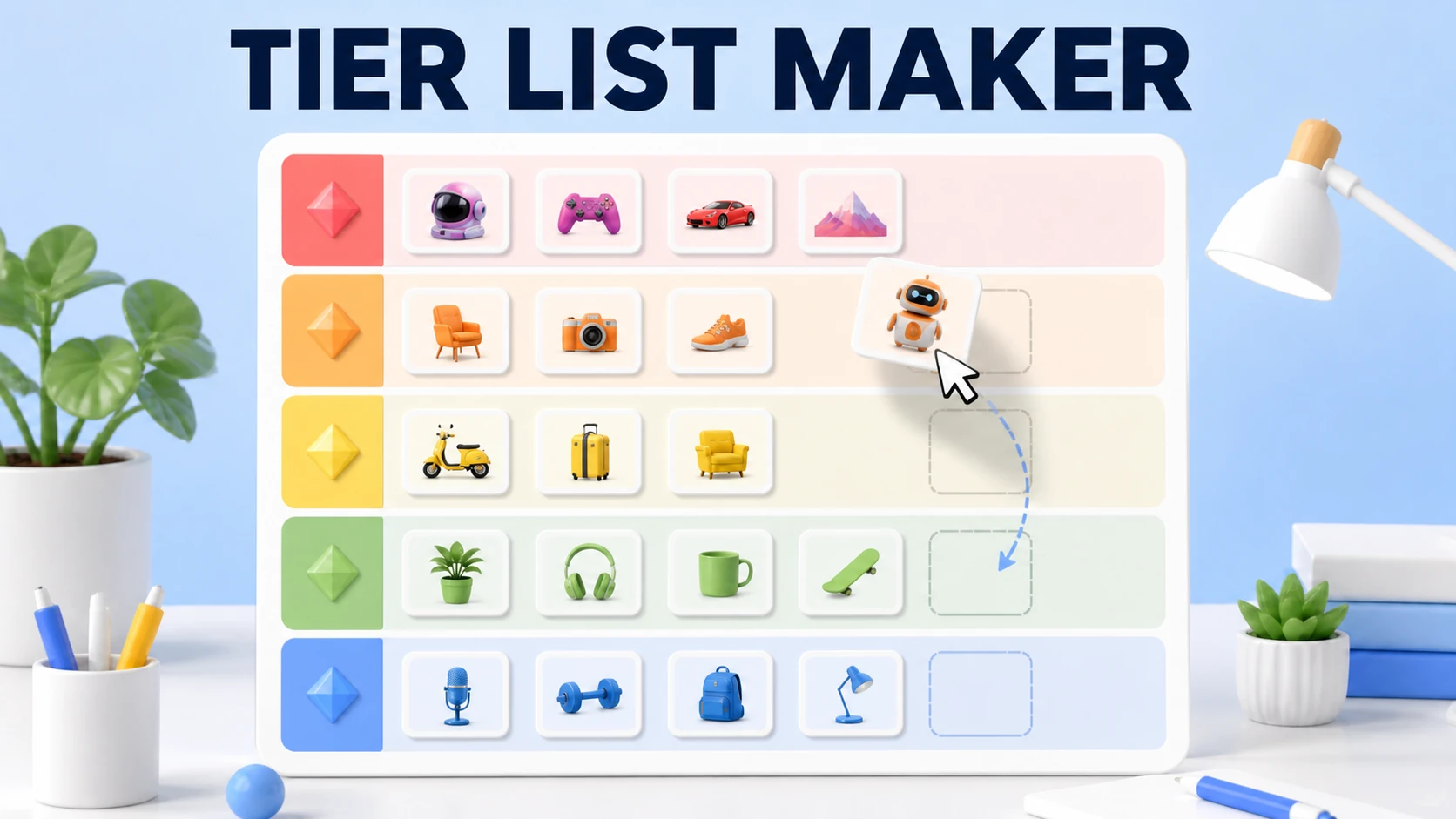
- Give the list a name. Add a title such as “Best RPGs” or “Pizza Toppings, Ranked.” The title becomes part of the PNG image and PDF document you export.
- Add your items. Choose Add images for pictures from your device, or choose Add text for labels and names. You can use both item types in one board.
- Place items in rows. New items appear in the unranked tray. Drag each card into the S, A, B, C, or D row that matches your current view.
- Adjust the layout. Rename a label, select a different row color, move rows with the arrows, or add and remove rows until the board fits your topic.
- Download the finished list. Open Download and choose PNG image for easy sharing or PDF document for printing and saving. The export follows the board you arranged on screen.
Why make a tier list online?
Ranking a group of items in your head is harder than seeing the choices together. Once every game, character, or product sits on one board, you can compare it with the items beside it and explain your decision more clearly. That’s why tier lists work so well in group chats and discussions. The picture gives everyone the same reference, even when people disagree about the order.
The browser-based format also keeps the setup light. You don’t need to create an account before arranging a list, and the board can be edited on a phone, tablet, or desktop. When the layout feels right, export it instead of taking a cropped screenshot that leaves out the title or the bottom row.
What do S, A, B, C, and D tiers mean?
The familiar tier letters make a list readable even when someone doesn’t know the subject. S is usually placed above A as the top category, then the rows move down toward the least recommended choices. These labels are a convention, not a strict scoring system, so the definition should match the rule you choose for the list.
| Tier | Typical meaning |
|---|---|
| S | The standout choices that set the top standard. |
| A | Excellent options that sit just below the very best. |
| B | Good, dependable choices with clear strengths. |
| C | Average choices that can still be useful in the right situation. |
| D | The weakest choices under the rule you selected. |
You can replace those letters with labels that explain your system better. For a game list, try Must Play, Worth Trying, and Skip. For a food list, use Order Again, Sometimes, and Not for Me. Short labels usually export more cleanly, especially when the tier list is viewed on a phone.
What can you rank with a tier list maker?
The format is flexible because each card is simply an item that needs a place. You can rank a whole category or make a focused list with one clear question. The following ideas are useful starting points when you want a topic that people can understand immediately.
- Games and characters. Compare games, heroes, weapons, maps, classes, or bosses.
- Movies, TV, and anime. Rank a franchise, its seasons, episodes, or favorite characters.
- Music. Put albums, songs, artists, or playlists into a personal order.
- Food and drinks. Sort meals, snacks, desserts, coffee orders, or restaurant choices.
- Work and study. Compare apps, learning resources, features, or ways to organize a project.
How can you make the ranking easier to trust?
A tier list feels more useful when every item is judged by the same rule. Decide whether you’re ranking quality, fun, value, difficulty, usefulness, or something else before you start moving cards. If the rule changes halfway through, two items can land in different rows for reasons that are hard to explain.
- Define the top row first. Decide what an item must do to earn S before you add several favorites.
- Place average items early. B or C gives you a middle reference point for stronger and weaker choices.
- Use clear pictures. A square image with one main subject remains easier to recognize in a small card.
- Keep similar items together while comparing. Side-by-side choices make small differences easier to spot.
- Leave room for disagreement. A tier list shows your criteria and preference, not a universal fact.
Which export format should you choose?
Choose PNG image when you want a quick file for a group chat, forum post, presentation, or social update. PNG keeps the board as one shareable picture, so it’s convenient when people only need to view the result. Choose PDF document when you want a page that’s easier to print, archive, or send by email. Before exporting, scan the title, row labels, and bottom tray so an unfinished item doesn’t not slip into the final file.
Finally, remember that the most useful tier list explains its rule. Add a short note in the title or alongside the exported image when the ranking could be misunderstood. “Best for solo play” tells a reader much more than “best games,” and it gives the conversation somewhere productive to start.
Frequently asked questions
A few details are easy to miss the first time you build a list. These answers cover the parts people ask about most often.
What is a tier list maker?
A tier list maker lets you sort things into ranked rows, most often S through D. Add your items, drag each one into the row that feels right, then share the finished board. This one runs in your browser, and it does not ask you to create an account.
Is this tier list maker free?
Yes. You can add pictures or text, arrange your rows, and download your list without an account or a watermark. There is no limit on the number of lists you can make.
Can I add my own images to the tier list?
Yes. Select Add images and choose one or more files from your device. You can also drop image files into the upload area. Your pictures stay on your device, so nothing is sent to a server.
How do I export my tier list as an image or PDF?
Open Download after you finish arranging the board. Choose PNG image for a picture file or PDF document for a single-page file. Both downloads use the board you have on screen.
Does the tool save my work?
Your current list stays saved in the same browser on the same device. Use Reset when you want a blank board. Clearing that browser's saved data also removes the list, so download a copy before you clear it.
Can I change the tier labels and colors?
Yes. Click a row label to rename it, then use the color control to change its color. You can move rows, remove them, or add more until the board matches the way you want to rank things.
What can I make a tier list for?
You can rank anything that makes sense to compare. People use tier lists for game characters, movies, shows, songs, food, sports players, and work tools. Pick a group of items and give each one a place.